Currencies Settings
Currencies Settings
The Currency Settings section allows administrators to configure and manage currencies used in the POS system. This ensures that all orders, payments, reports, and invoices display the correct currency format.
1. What are Currency Settings?
Currency settings define how monetary values are displayed throughout the POS system. These settings control the currency symbol, number formatting, and default currency used in transactions.
- Set the default currency for the system
- Display correct currency symbols on bills
- Maintain consistent financial formatting
- Support multiple currencies if required
- Ensure accurate reporting and invoicing
2. Understanding Currency Table
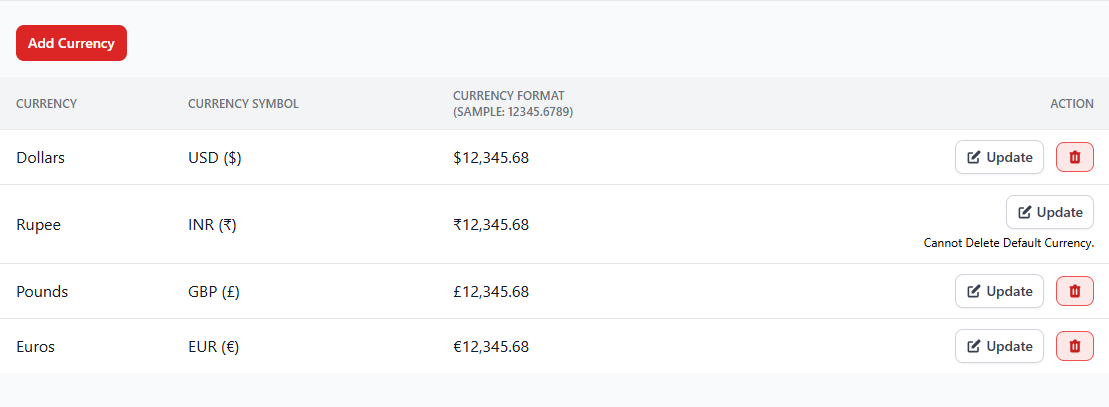
The currency management table lists all currencies configured in the system. Each currency includes details about its symbol and display format.
| Column | Description |
|---|---|
| Currency | The name of the currency (e.g., Dollar, Rupee, Euro). |
| Currency Symbol | The symbol used for the currency such as $, ₹, £, or €. |
| Currency Format | Defines how the amount appears in the system (example: 12,345.68). |
| Action | Allows administrators to update or delete the currency. |
3. How to Add a New Currency
- Navigate to Settings → Currencies.
- Click the Add Currency button.
- Enter the currency name.
- Add the currency symbol.
- Choose the correct currency format.
- Save the currency.
4. Managing Currency Information
- Update currency settings using the Update option.
- Delete unused currencies from the system.
- Ensure the correct currency is selected as default.
- Maintain proper formatting for financial records.
5. Important Notes
The default currency of the system cannot be deleted. If you want to remove a
currency, first ensure it is not set as the default currency.
Always configure the correct currency during initial system setup to avoid
billing or reporting inconsistencies.