Settings Overview
Settings Overview
The Settings section allows restaurant owners and administrators to configure system behavior, billing rules, operational workflows, and business details. Proper configuration ensures smooth POS operations and accurate reporting.
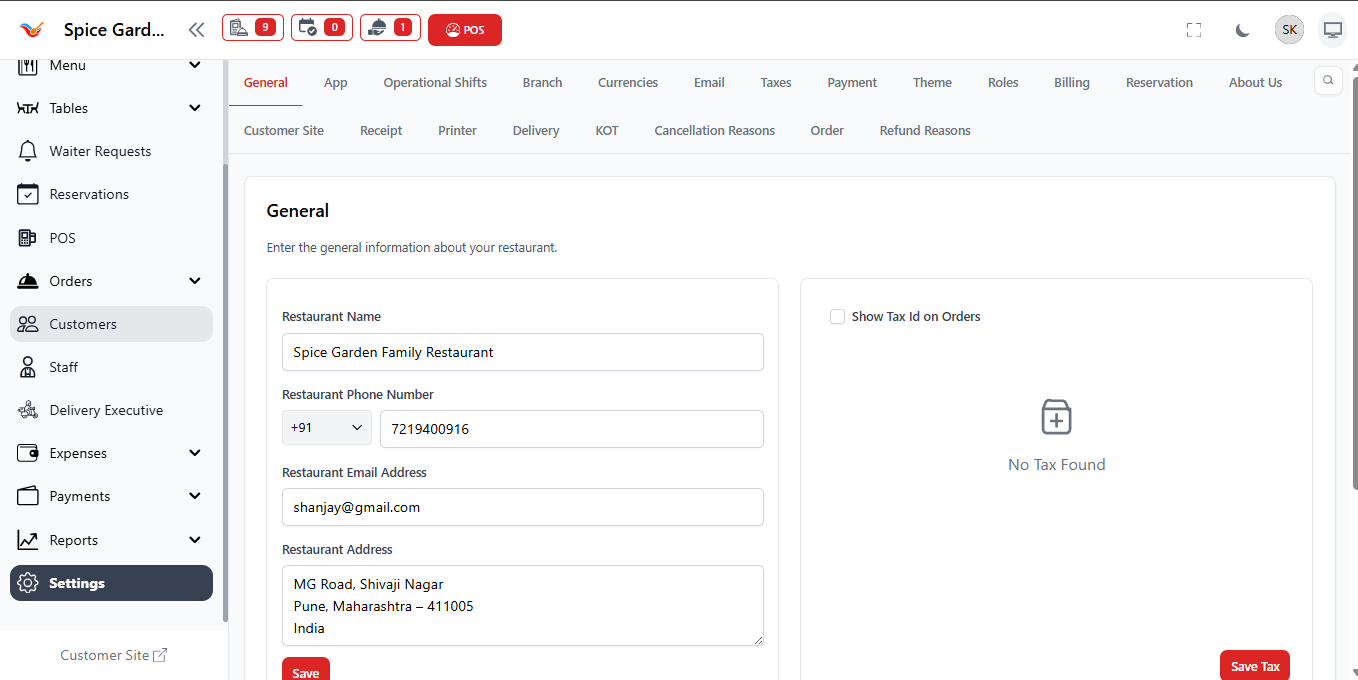
1. General Settings
General Settings store the primary restaurant information used across bills, reports, receipts, and customer communications.
| Setting | Description |
|---|---|
| Restaurant Name | Name displayed on invoices and receipts. |
| Phone Number | Official contact number for customers. |
| Email Address | Used for notifications and communication. |
| Restaurant Address | Printed on bills and used for legal/business identity. |
| Show Tax ID | Displays GST/Tax ID on order receipts. |
Always keep restaurant details updated for compliance and billing accuracy.
2. Settings Modules Explained
The Settings panel contains multiple configuration tabs controlling different parts of the POS system.
| Setting Tab | Purpose | Used By |
|---|---|---|
| App | Application-level configurations and behavior | Admin |
| Operational Shifts | Manage working shifts and business hours | Manager |
| Branch | Configure multiple restaurant branches | Owner |
| Currencies | Set currency format and symbols | Admin |
| Email notification settings | Admin | |
| Taxes | Create and manage tax structures | Accountant |
| Payment | Configure payment methods | Owner |
| Theme | Customize system appearance | Admin |
| Roles | Manage staff permissions | Owner |
| Billing | Invoice and billing rules | Admin |
| Reservation | Reservation configuration settings | Manager |
| Receipt | Receipt layout customization | Admin |
| Printer | Configure receipt/KOT printers | Admin |
| KOT | Kitchen Order Ticket behavior settings | Kitchen Manager |
| Order | Order processing rules | Admin |
| Refund Reasons | Predefined refund reasons | Owner |
3. Additional Charges
Additional Charges allow restaurants to automatically apply extra fees such as service charge or packaging fees.
- Add service charges or delivery fees.
- Apply charges based on order type.
- Automatically included in billing.
4. Preset Amounts
Preset amounts help staff quickly select common values during transactions like tips, advance payments, or quick billing.
- Speed up payment processing.
- Reduce manual typing errors.
- Improve cashier efficiency.
Configure commonly used payment values for faster checkout operations.
5. Important Notes for Owners
- Only administrators should modify settings.
- Review tax and billing settings monthly.
- Verify printer settings before live operations.
- Keep refund and cancellation reasons standardized.
- Backup settings before major changes.