Navigation Bar Overview
Top Navigation Controls
The top navigation bar provides quick access to important operational tools such as orders, reservations, waiter requests, and POS functions. It also includes user interface controls like dark mode, full screen mode, and profile access.

Navigation Icons
| Icon | Function |
|---|---|
| Orders | Shows the number of new or pending orders in the system. |
| Reservations | Displays upcoming reservation notifications. |
| New Waiter Request | Indicates when a customer requests assistance from a waiter. |
| Direct Order (POS) | Quickly create a new order through the POS interface. |
| Full Screen Mode | Expands the system interface to full screen for better visibility. |
| Dark / Light Mode | Switch between dark theme and light theme. |
| Profile | Access user profile settings and account options. |
| Display | Access customer display features such as order board screens. |
Customer Display
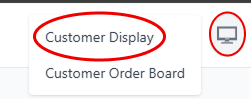
The Customer Display option allows restaurants to show order information to customers on a dedicated display screen. This is commonly used in quick-service restaurants to improve order tracking and customer experience.
Customer Order Board
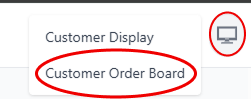
The Customer Order Board displays order numbers and their preparation status. Customers can easily track when their order is ready for pickup.
| Feature | Description |
|---|---|
| Live Order Updates | Displays real-time order status updates. |
| Token Display | Shows token or order numbers to customers. |
| Order Status | Indicates whether an order is preparing, ready, or completed. |
Best Practices
- Use a dedicated screen for the customer order board.
- Place the screen where customers can easily view it.
- Keep order tokens visible until the order is collected.
- Use the board to reduce crowding at the counter.