KOT Orders
Kitchen Order Tickets (KOT) Management
The KOT (Kitchen Order Ticket) dashboard is the operational control center for kitchen staff. It manages food preparation workflow, order status, and communication between kitchen and service staff.
1. KOT Dashboard Overview
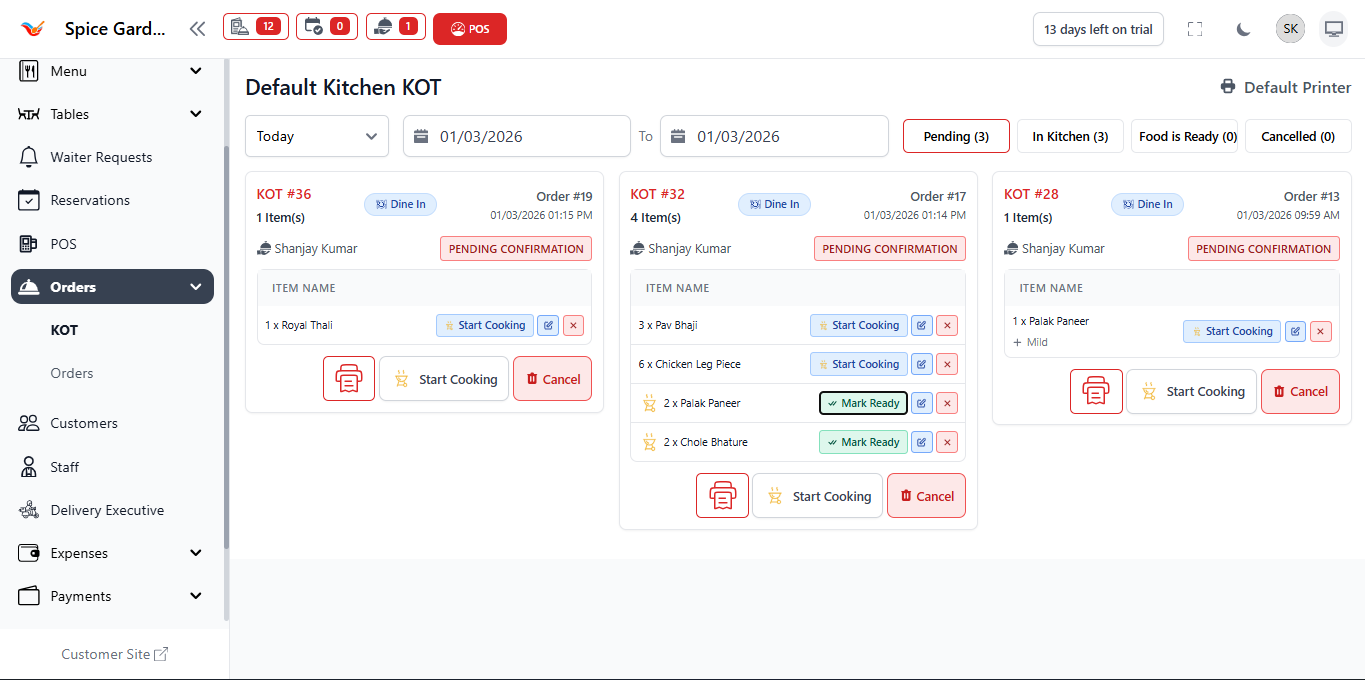
The KOT Dashboard displays all kitchen tickets categorized by preparation status. Each ticket represents items from a customer order that require preparation.
Top Filters & Controls
- Date Filter – View KOTs by specific date or range.
- Status Tabs – Filter tickets by workflow stage.
- Default Printer – Select printer for KOT printing.
Status Tabs Explained
- Pending – Waiting for kitchen confirmation.
- In Kitchen – Currently being prepared.
- Food is Ready – Ready for service.
- Cancelled – Cancelled tickets.
2. Pending KOT
Pending KOTs are newly created tickets awaiting kitchen acknowledgment. No preparation has started yet.
Available Actions
- Start Cooking – Moves ticket to "In Kitchen".
- Cancel – Cancels the ticket.
- Print Icon – Prints physical KOT copy.
3. In Kitchen Status
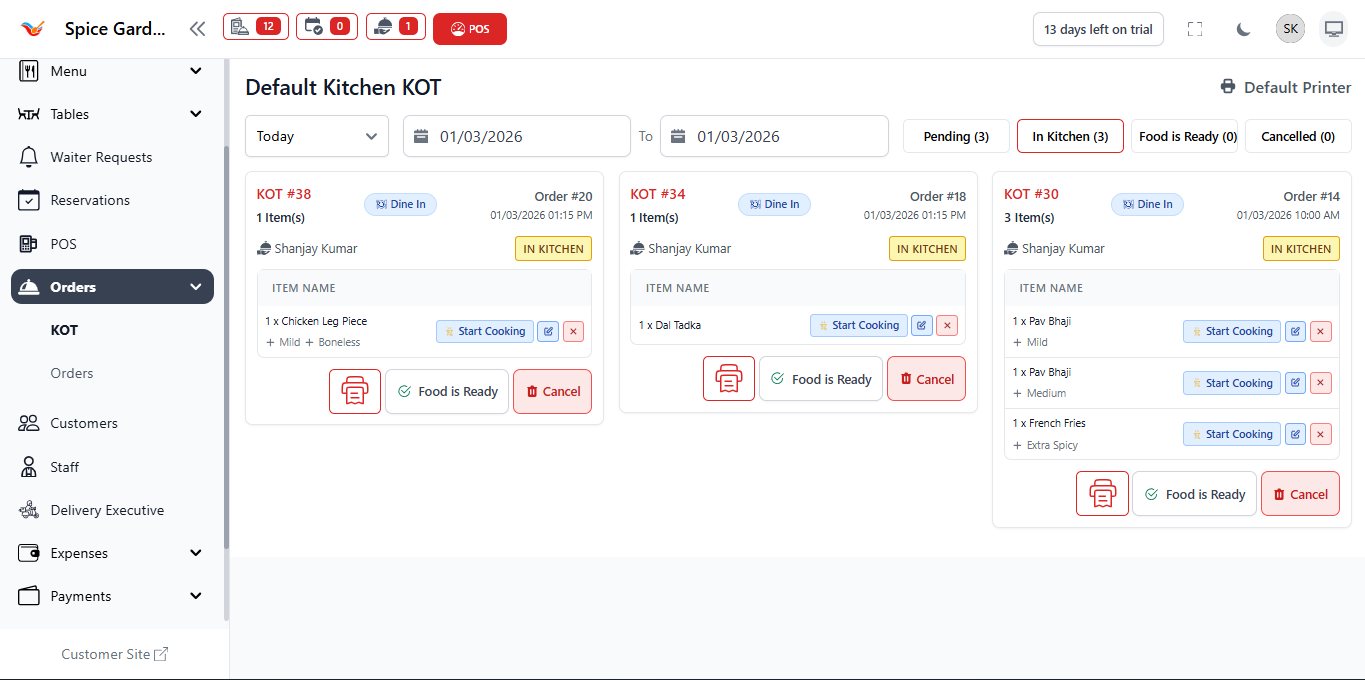
When preparation begins, the KOT moves to the In Kitchen stage. This indicates active cooking.
Actions in This Stage
- Food is Ready – Marks preparation complete.
- Cancel – Cancels before serving.
- Print – Reprint ticket if needed.
4. Food is Ready
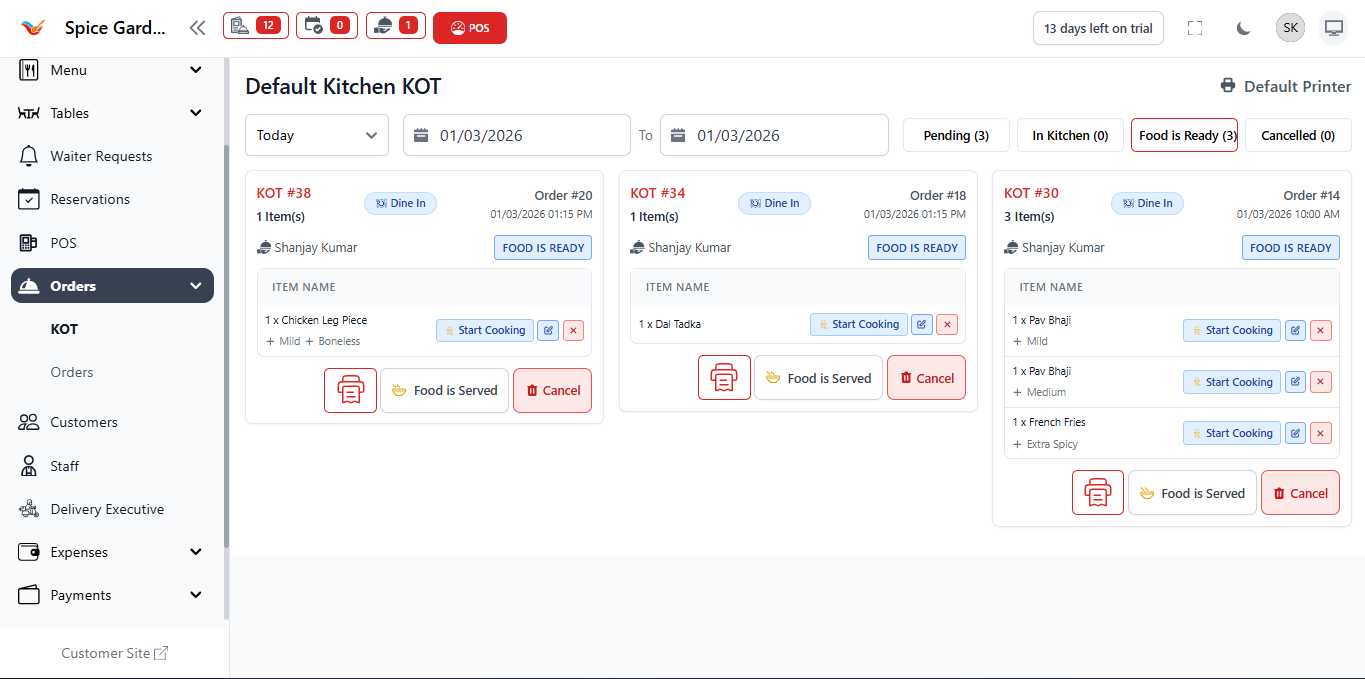
Once preparation is completed, the KOT moves to Food is Ready. Service staff can now deliver the food to the customer.
Important Indicators
- Ready badge shown in green.
- Order details remain accessible.
- Print option available.
5. Cancelled KOT

Cancelled KOTs represent tickets that were voided before completion. Cancellation requires confirmation and reason selection.
Cancel Confirmation Popup
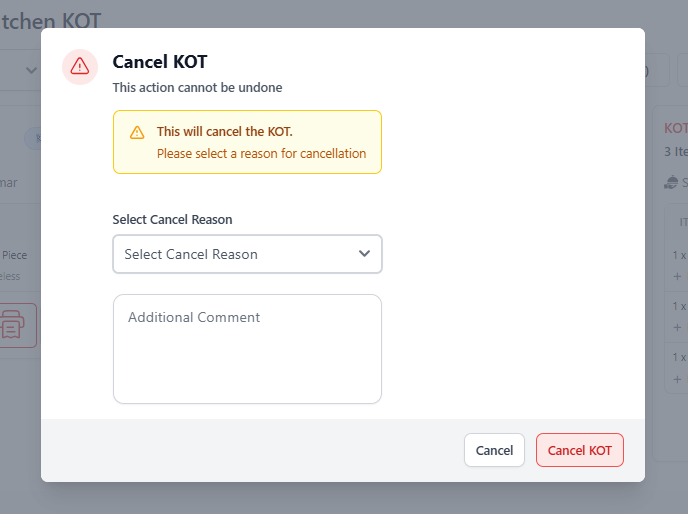
- Select cancel reason.
- Add optional comments.
- Confirm cancellation.
6. Understanding Information Inside Each KOT Card
Each KOT card contains critical operational data:
- KOT Number – Unique kitchen ticket reference.
- Order Number – Linked POS order ID.
- Order Type – Dine In / Delivery / Pickup.
- Customer Name – For identification.
- Date & Time – Order creation time.
- Item List – Items with modifiers.
- Quantity – Number of portions.
- Status Badge – Current preparation stage.
7. Complete KOT Workflow
- Order Created in POS
- KOT Generated
- Status: Pending
- Start Cooking → In Kitchen
- Mark Ready → Food is Ready
- Serve to Customer
- Complete Billing
This structured workflow ensures operational clarity and reduces miscommunication between departments.