Selecting Items & Building a POS Order
Selecting Items & Building a POS Order
Once the order type is selected, the POS screen allows staff to search, filter, and select items from the menu. This section explains how to add items, use categories, apply modifiers, and view the order summary.
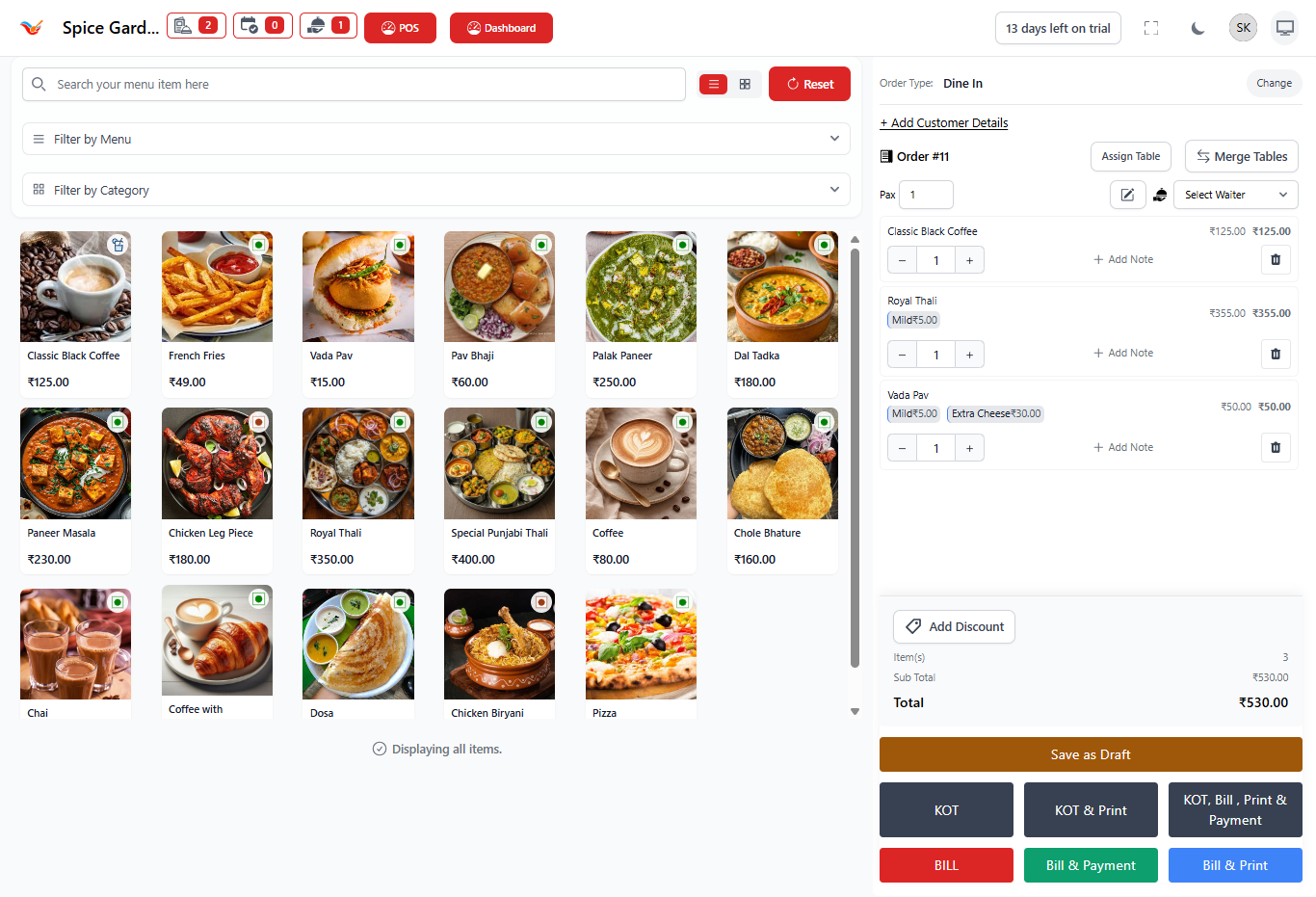
1. POS Item Search & Filters
On the order screen, use the search bar at the top to quickly find specific menu items:
- Search Field — Type item name (e.g., Pizza, Coffee)
- Filter by Menu — Show items from specific menus
- Filter by Category — Show items within selected category
2. Selecting Items
Click on any item tile to add it to the current order. Each click increments the item quantity and updates the running total instantly in the order summary panel on the right.
- Selected items appear in the **Order Summary** panel
- Item quantities increase with repeated clicks
- Use the *plus* and *minus* buttons to adjust quantities manually
3. Using Modifiers
When an item has modifier groups, the modifier panel opens automatically after selection. Modifiers allow customization such as spice levels, add-ons, or portion sizes.
- Select one or more modifier options as allowed.
- Modifiers with price adjustments automatically update the total.
- Click *Done* or *Apply* to save modifiers and return to the order screen.
4. Order Summary Panel
The right-side panel shows live updates as items are added:
- Item Name and Modifiers
- Quantity with +/- buttons
- Item Price
- Add Note — Add special instructions
- Delete — Remove item from order
Below the item list, you will find:
- Discount button (apply order-level discount)
- Order subtotal
- Total payable amount
5. Save as Draft
Use the Save as Draft button when:
- The order is not complete yet
- Items are still being added
- Waiting for customer confirmation
Why Accurate Item Selection Matters
- Improves kitchen accuracy
- Ensures correct billing
- Saves staff time
- Reduces order errors