Printing Settings
Printer Settings
Printer Settings allow administrators to configure how receipts and kitchen order tickets (KOT) are printed within the restaurant system. This feature enables restaurants to connect physical printers with the POS system for seamless printing of order receipts and kitchen tickets.
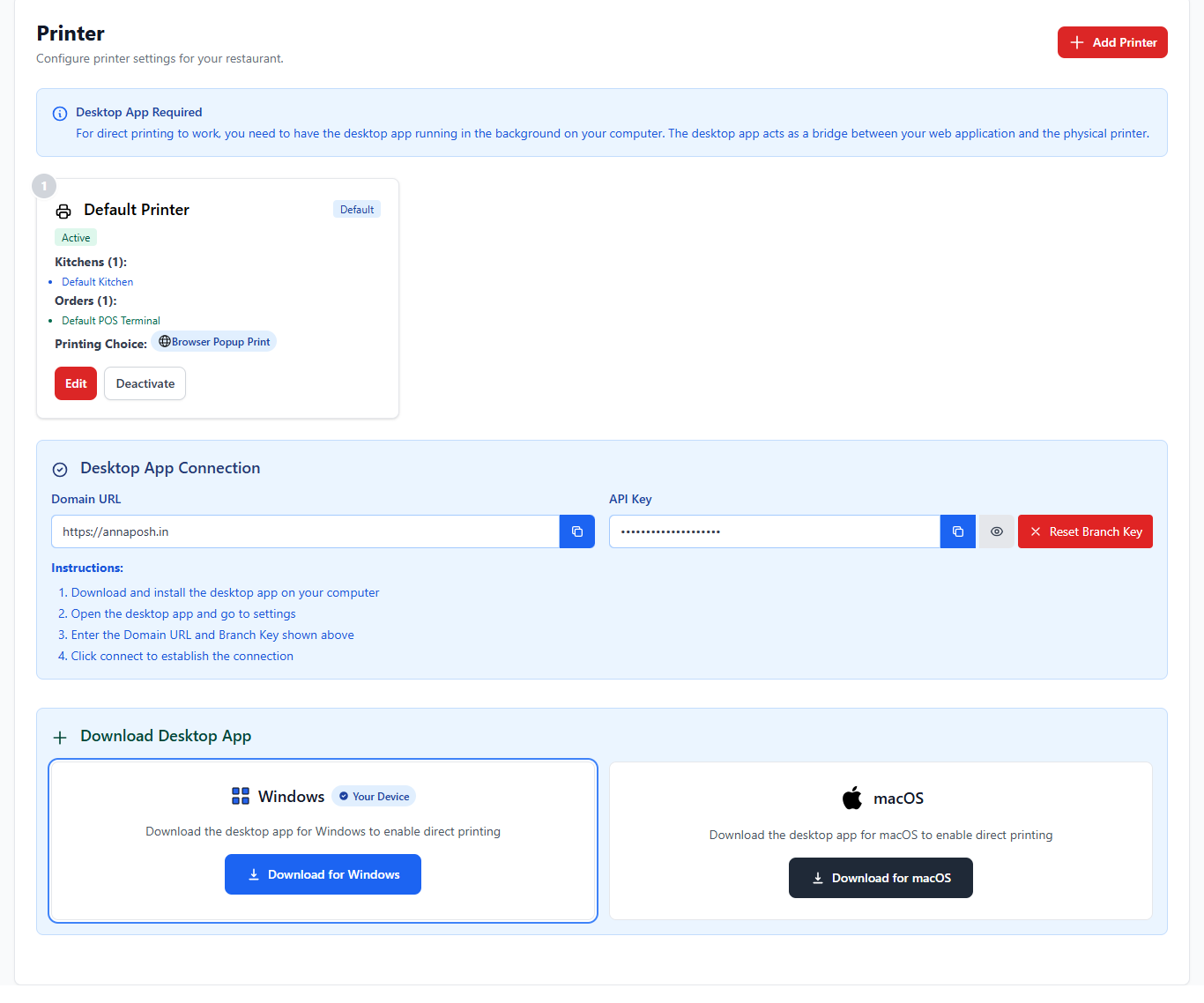
1. Adding a Printer
Administrators can add and manage printers that will be used for printing receipts and kitchen order tickets. Each printer can be assigned to specific kitchens or POS terminals.
| Option | Description |
|---|---|
| Add Printer | Add a new printer to the restaurant printing system. |
| Default Printer | Defines the main printer used for printing receipts. |
| Kitchens | Assign printers for kitchen order tickets (KOT). |
| Orders | Assign printers for POS order receipts. |
| Printing Choice | Select how printing will be handled (browser popup print or direct printer). |
| Edit / Deactivate | Modify printer configuration or disable the printer. |
2. Desktop App Requirement
For direct printing to work, the desktop application must be installed and running in the background on the computer. The desktop application acts as a bridge between the web application and the physical printer.
| Component | Description |
|---|---|
| Domain URL | The system domain used by the desktop application to connect to the POS system. |
| API Key | A secure key used to authenticate and connect the desktop printing application. |
| Reset Branch Key | Generates a new key for reconnecting the printer application. |
3. Connecting the Desktop Printing App
Follow these steps to connect the desktop printing application with your POS system:
- Download and install the desktop application on your computer.
- Open the desktop application and go to the settings page.
- Enter the Domain URL and API Key provided in the Printer Settings.
- Click Connect to establish the connection.
4. Download Desktop Application
To enable direct printing functionality, download and install the desktop application for your operating system.
| Platform | Download |
|---|---|
| Windows | Download for Windows |
| macOS | Download for macOS |
Best Practices
- Use a dedicated printer for kitchen order tickets to avoid confusion.
- Ensure the desktop printing application is always running on the computer.
- Test printer connectivity after configuring the printer.
- Assign different printers for receipts and kitchen orders if required.