Add Customer Details
Add Customer Details
The POS system allows staff to attach customer information to an order. Associating customers with transactions enables better service tracking, improved reporting accuracy, customer relationship management, and future marketing opportunities.
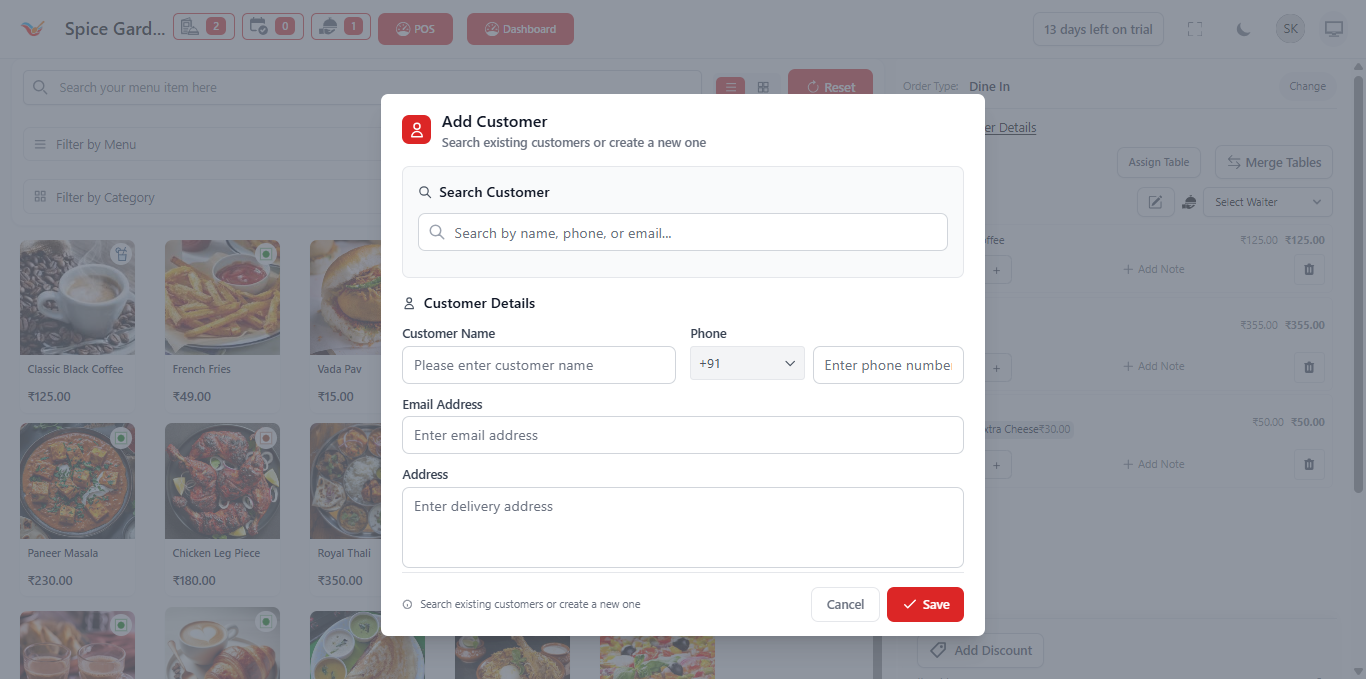
1. Purpose of Adding Customer Details
Attaching a customer to an order ensures that the transaction is recorded under a specific profile. This allows the system to maintain structured customer records and improve operational intelligence.
- Track repeat customers
- View customer order history
- Generate customer-based sales reports
- Support loyalty or rewards programs
- Maintain accurate billing records
2. When Should Customer Details Be Added?
Customer details should always be added in the following scenarios:
- Delivery orders (address required)
- Takeaway orders with repeat customers
- Corporate or bulk orders
- VIP customers
- Orders requiring invoice documentation
For fast dine-in service, this step may be skipped if not required.
3. Searching for Existing Customers
To prevent duplicate entries, always search for existing customers before creating a new profile.
- Search by Name
- Search by Phone Number
- Search by Email
Once selected, the system instantly links the customer to the active order.
4. Creating a New Customer
If the customer is new, enter the following information:
- Customer Name – Required
- Phone Number – Required
- Email Address – Optional
- Address – Required for delivery
After entering details, click Save to attach the customer to the order. The system will automatically store the profile for future transactions.
5. System Behavior After Customer Selection
- Customer name appears in the order summary.
- Order is linked to customer profile.
- Transaction is included in customer purchase history.
- Future searches will auto-suggest this customer.
6. Impact on Reporting & Analytics
When customer data is attached to orders, the system can generate:
- Total revenue per customer
- Average order value per customer
- Most frequently ordered items
- Customer visit frequency
- High-value customer identification
This data helps restaurant owners improve retention strategies and targeted promotions.
7. Best Practices
- Always verify phone numbers before saving.
- Avoid creating duplicate profiles.
- Update customer details if incorrect.
- Encourage staff to attach customers during billing.
8. Operational Example
Example workflow:
- A customer calls for takeaway.
- Staff selects Pickup order type.
- Items are added.
- Customer phone number is searched.
- Existing profile is selected.
- Order is completed and linked to customer history.
Next time the same customer calls, their information can be selected instantly, reducing billing time significantly.