Orders Dashboard
Orders Dashboard
The Orders Dashboard provides a real-time overview of all orders created in the restaurant system. It allows owners and managers to monitor order flow, kitchen activity, billing progress, and payment completion in one centralized interface.
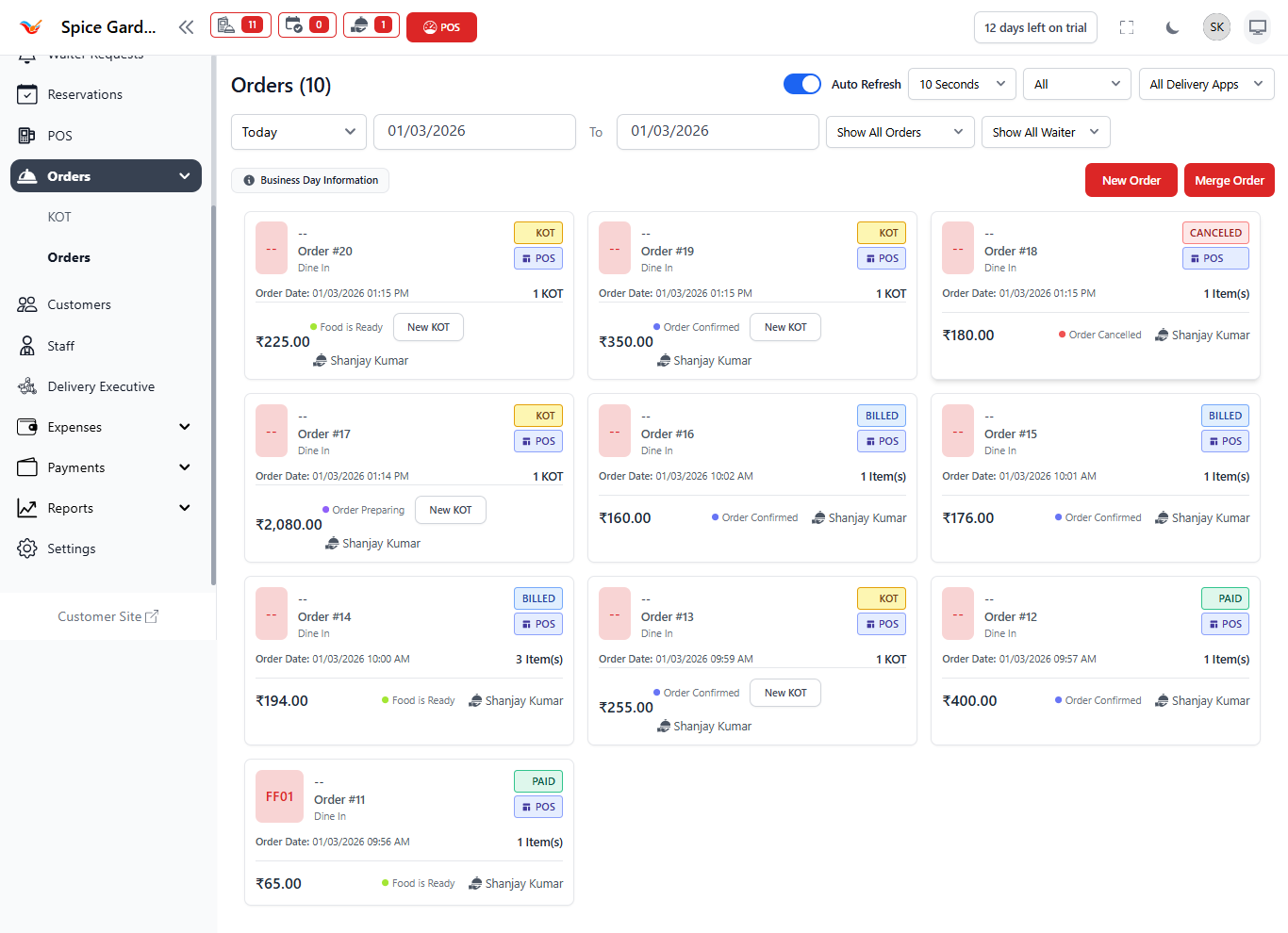
1. Dashboard Controls & Filters
Date Filters
Select a specific date or date range to view orders from a particular day. This helps owners analyze daily sales performance.
Auto Refresh
When enabled, the system automatically refreshes the dashboard at defined intervals (e.g., every 10 seconds). This ensures real-time order monitoring during peak hours.
Status & Delivery Filters
- Filter by specific order types.
- Filter by waiter assignment.
- Filter by delivery applications (if integrated).
2. Understanding Order Cards
Each card on the dashboard represents a single order. The card contains essential operational details:
- Order Number – Unique ID used for tracking.
- Order Type – Dine In or POS.
- Order Date & Time – Creation timestamp.
- Total Amount – Final bill value.
- Item Count – Number of items in order.
- Assigned Waiter – Responsible staff member.
3. Order Status Indicators
The system visually categorizes orders using status labels:
- KOT – Sent to kitchen.
- Order Confirmed – Accepted and processing started.
- Food is Ready – Prepared and ready for serving.
- Billed – Invoice generated.
- Paid – Payment completed.
- Cancelled – Order voided.
4. Quick Action Buttons
- New Order – Create a new manual order.
- Merge Order – Combine multiple orders into one.
These actions allow quick adjustments during busy operations.
5. Why the Orders Dashboard is Important for Owners
- Track real-time restaurant activity
- Monitor kitchen efficiency
- Identify delayed orders
- Prevent billing mistakes
- Review daily revenue performance
- Audit cancelled or modified orders
The Orders Dashboard acts as a command center for operational control and financial visibility.