How to Manage Kitchen Order Task (KOT)
How to Manage Kitchen Order Tickets (KOT)
The KOT dashboard allows kitchen staff and managers to control, monitor, and process food preparation efficiently. Proper management of KOT orders ensures faster service, reduced errors, and better coordination.
1. Monitor New Orders (Pending KOT)
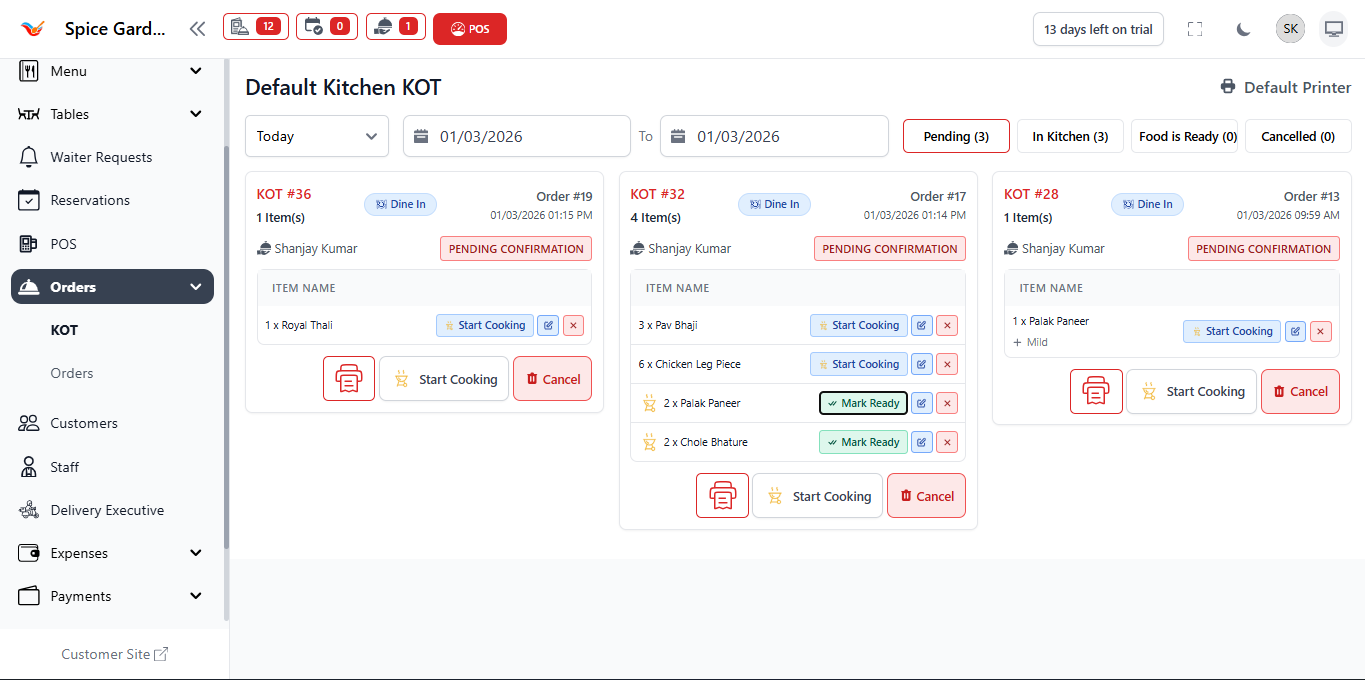
When an order is placed in POS, a KOT is automatically generated and appears under the Pending tab.
What to Check in Pending KOT
- KOT Number and Order Number
- Order Type (Dine In / Delivery / Pickup)
- Customer Name
- Items with modifiers
- Order time
Action Required
- Click Start Cooking to begin preparation.
- If the order is incorrect, use Cancel.
- Print KOT if physical kitchen slip is required.
2. Track Active Preparation (In Kitchen)
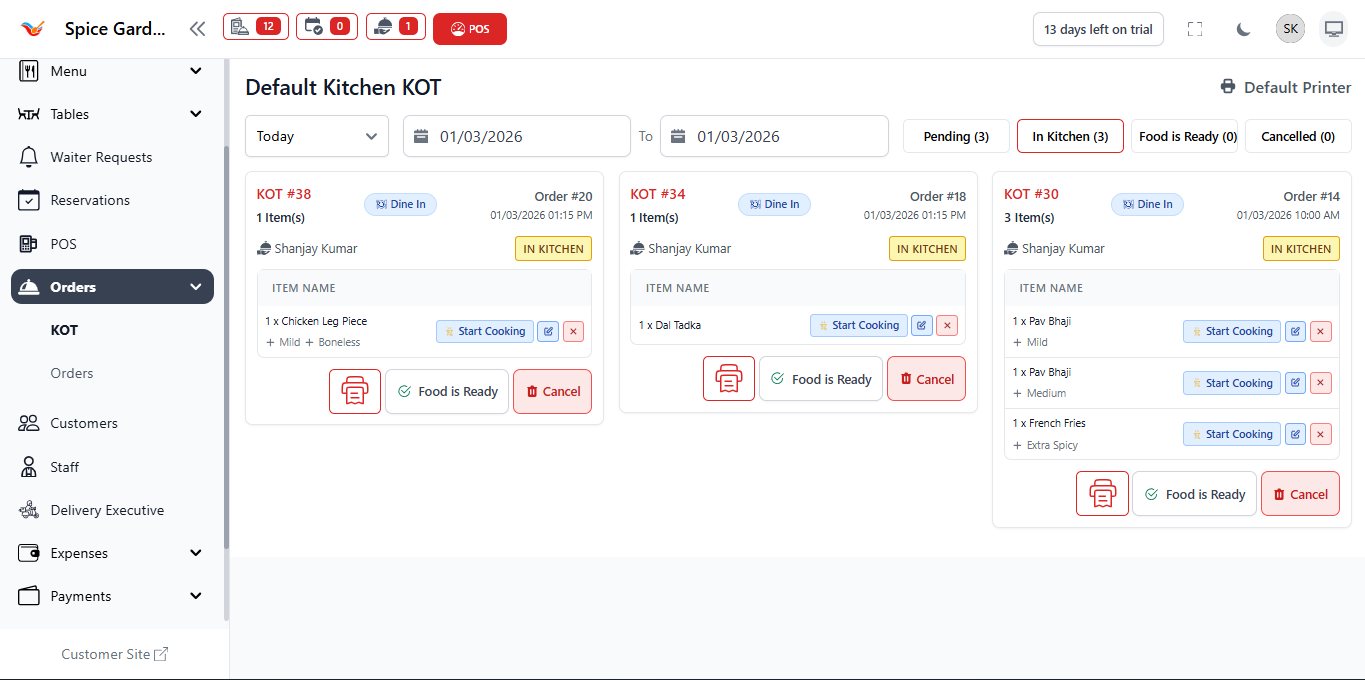
Once cooking begins, the KOT moves to In Kitchen. This indicates active preparation.
How to Manage This Stage
- Monitor preparation time.
- Verify modifiers (e.g., Mild, Extra Spicy, Boneless).
- Ensure item quantities are correct.
Available Actions
- Food is Ready – Mark order as completed.
- Cancel – Cancel before serving (if required).
- Print – Reprint KOT.
3. Mark Food as Ready
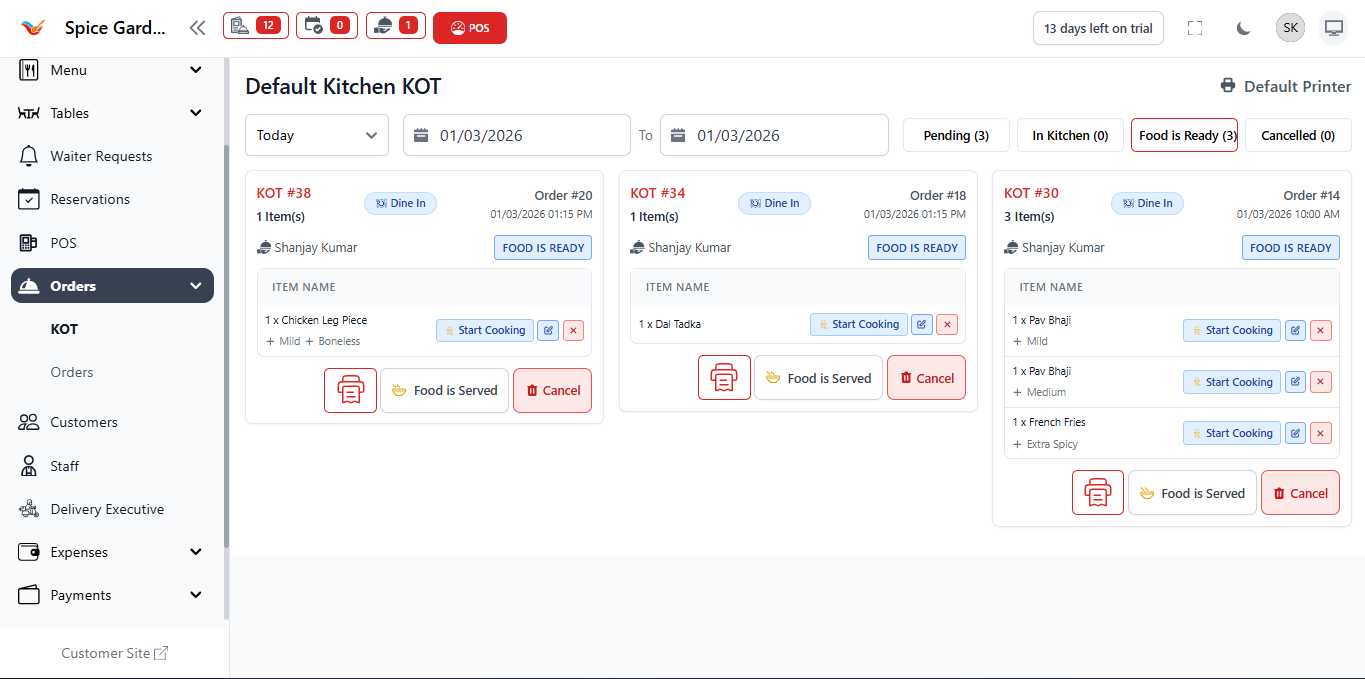
After preparation is complete, click Food is Ready. The ticket moves to the Food Ready section.
Why This Step is Important
- Notifies service staff.
- Prevents duplicate preparation.
- Ensures order flow transparency.
- Reduces confusion during peak hours.
4. Cancel a KOT (If Required)
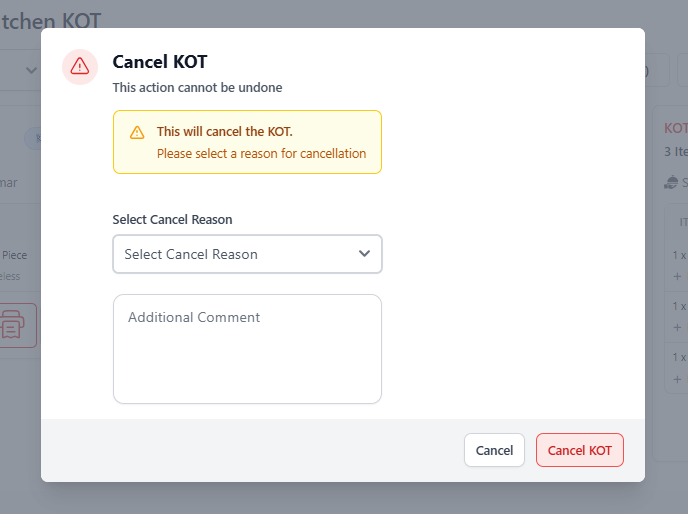
If a customer changes the order or cancellation is required, you must select a valid reason before confirming.
Cancellation Process
- Click Cancel on the KOT.
- Select a cancellation reason.
- Add optional comment.
- Confirm cancellation.
5. Use Status Filters to Manage Workflow
The top status filters help kitchen staff prioritize tasks:
- Pending – New orders waiting.
- In Kitchen – Currently cooking.
- Food is Ready – Awaiting serving.
- Cancelled – Voided tickets.
Switch between tabs to organize workload and avoid missing orders.
Complete KOT Management Workflow
- Order created in POS
- KOT appears under Pending
- Start Cooking → Moves to In Kitchen
- Mark Food Ready → Moves to Food Ready
- Serve order to customer
- Complete billing
Proper KOT management ensures faster service, better team coordination, and accurate reporting.