Tables View
Table Management
The Table Management module allows you to digitally control dine-in seating. It connects tables with areas, waiters, reservations, and POS orders to ensure smooth restaurant operations.
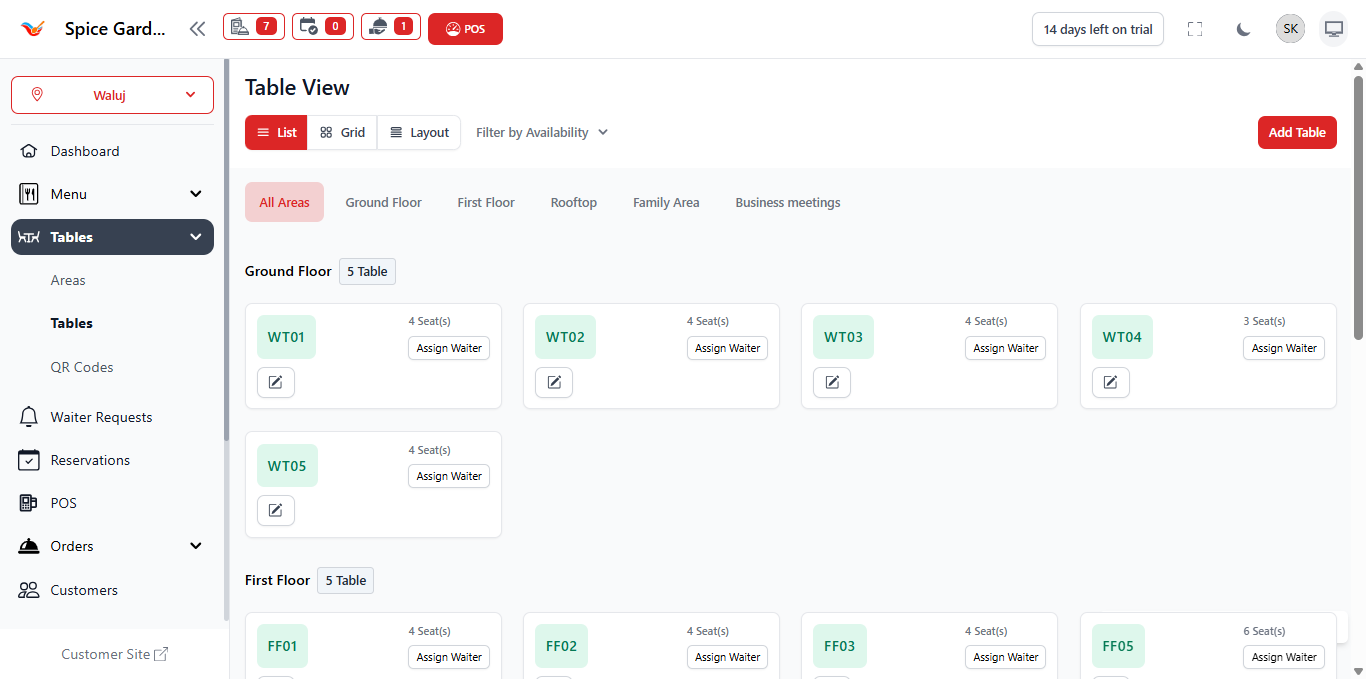
1. Overview of Tables Module
Each table in the system represents a physical seating unit in your restaurant. Tables are organized inside areas and used for dine-in order management.
Tables help you:
- Track active dine-in orders
- Monitor seating availability
- Assign waiters to tables
- Manage billing & settlement
Tables automatically change status based on order activity.
2. Table View Modes
The system provides multiple viewing options:
- List View – Displays tables in structured format.
- Grid View – Visual layout for easier navigation.
- Layout View – Represents seating arrangement visually.
Grid or Layout view is recommended during peak hours for faster table selection.
3. Adding a New Table
- Click Add Table.
- Select the appropriate Area.
- Enter the Table Code (e.g., WT01).
- Define seating capacity.
- Set table status (Active / Inactive).
- Click Save.
Table codes should match physical table labels for easy identification.
4. Assigning Waiters to Tables
Each table can be assigned to a specific waiter.
- Click Assign Waiter.
- Select the staff member.
- Save changes.
Assigning waiters improves accountability and service tracking.
5. Table Status Behavior
- Available – Ready for customers.
- Occupied – Active dine-in order exists.
- Reserved – Assigned to a reservation.
- Inactive – Not available for use.
Table status updates automatically when orders are created or completed.
6. Editing or Deleting Tables
- Click Update to modify table details.
- Click Delete to remove a table.
Tables with active orders cannot be deleted.
7. Integration with POS
When creating a dine-in order:
- Select a table from the layout.
- Add menu items.
- Save the order.
Once billing is completed, the table automatically becomes available again.
Proper table management ensures accurate revenue tracking.