Customer Management
Customer Management
The Customer Management module allows restaurant owners and staff to store, manage, and access customer information efficiently. This section helps track customer details, order history, and improves service personalization and operational efficiency.
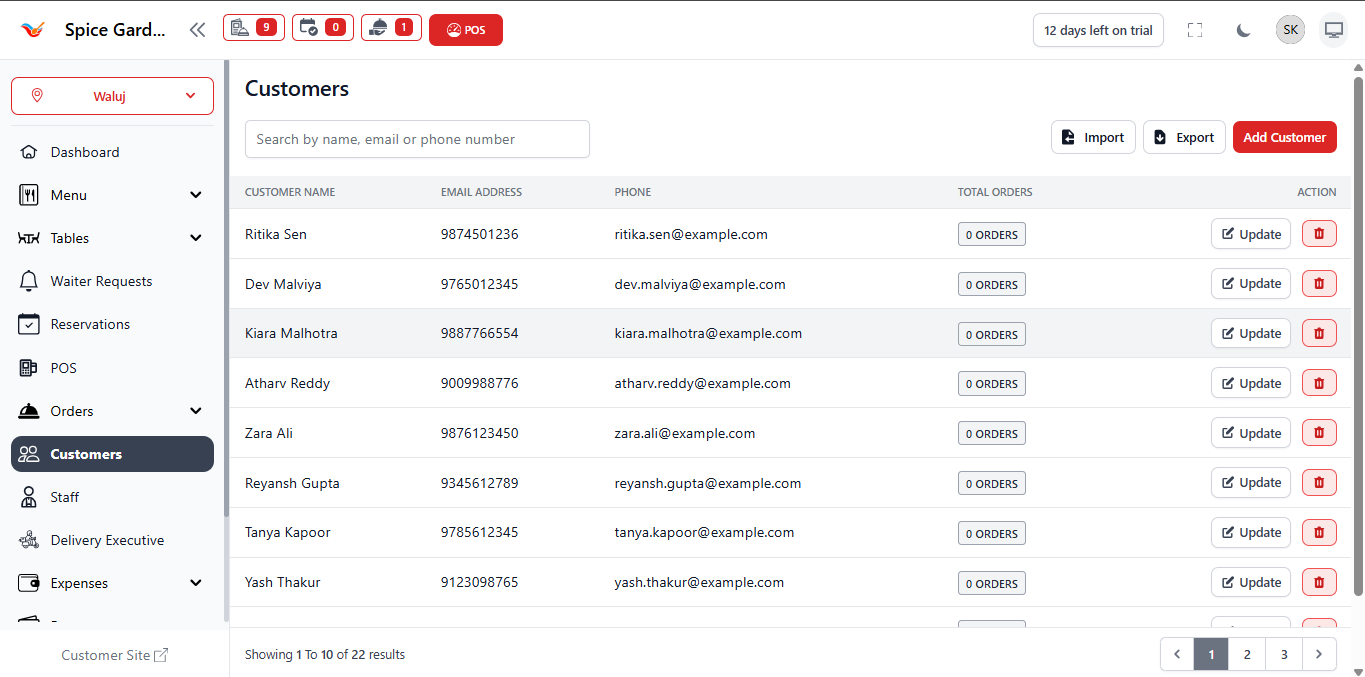
1. Customers Dashboard Overview
The Customers dashboard displays all registered customers within the system. It acts as a centralized database where restaurant staff can quickly search, update, or manage customer records.
Available Information
- Customer Name — Full name of the customer.
- Email Address — Used for communication and digital receipts.
- Phone Number — Primary contact number.
- Total Orders — Displays how many orders the customer has placed.
- Action Buttons — Update or delete customer details.
Top Controls
- Search Bar — Quickly find customers using name, email, or phone number.
- Add Customer — Create a new customer entry.
- Import — Upload customer data using Excel files.
- Export — Download customer database for reporting or backup.
2. Adding a New Customer
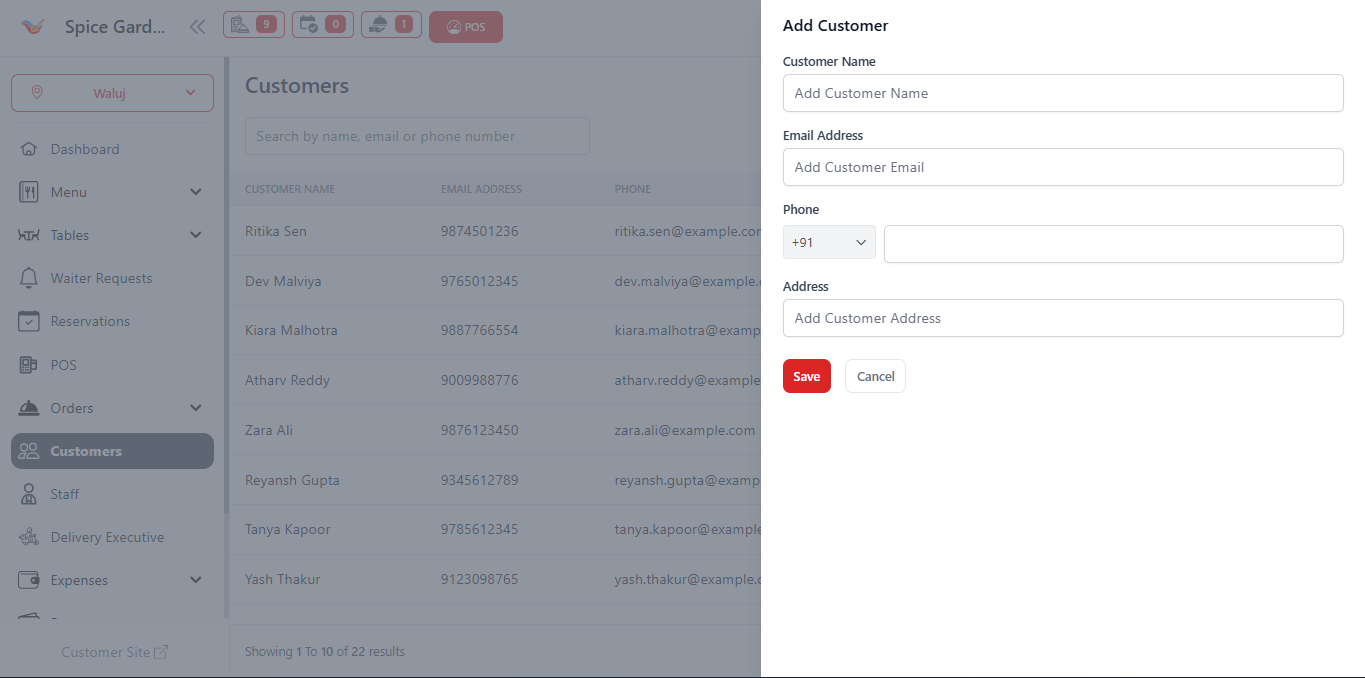
New customers can be added manually from the Customers section or automatically during POS order creation.
Required Fields
- Customer Name — Enter customer's full name.
- Email Address — Optional but recommended for digital communication.
- Phone Number — Primary contact number.
- Address — Customer location or delivery address.
Steps to Add Customer
- Navigate to Customers from sidebar.
- Click Add Customer.
- Fill in customer information.
- Click Save.
3. Editing Customer Information
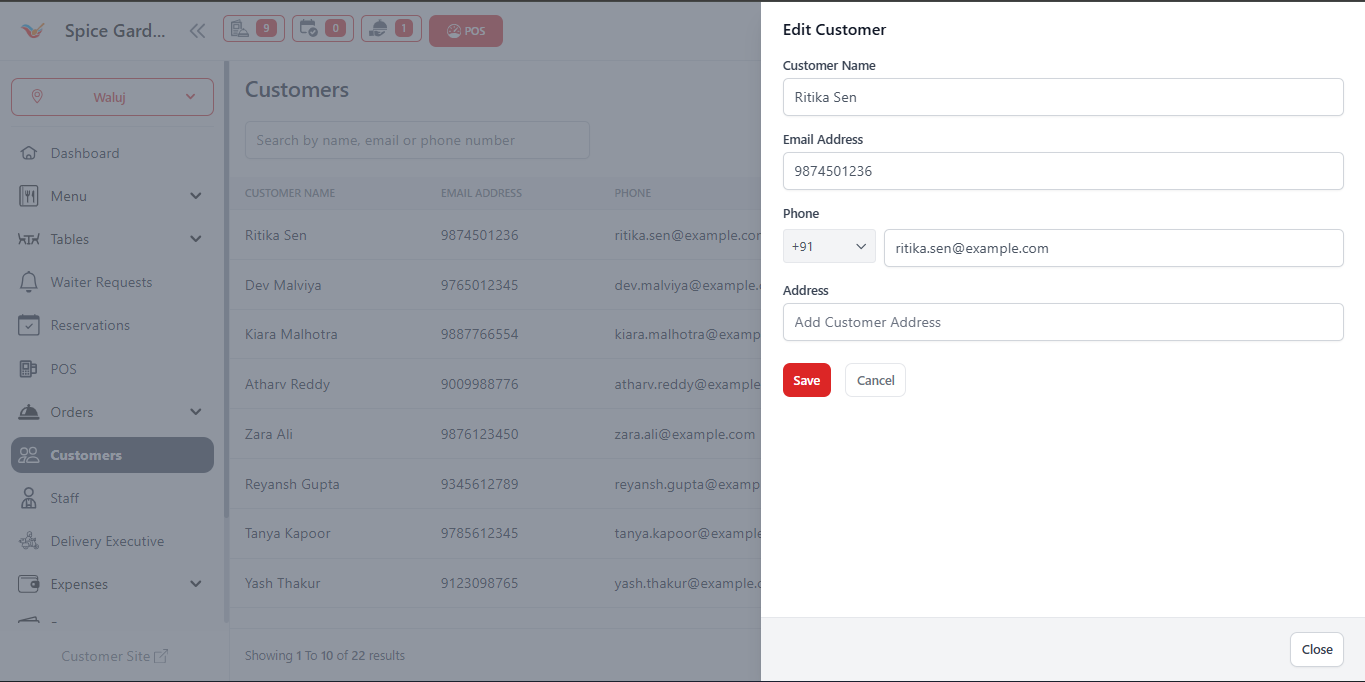
Customer details can be updated anytime to maintain accurate records.
Editable Information
- Customer Name
- Email Address
- Phone Number
- Address
Steps to Edit
- Locate customer from list.
- Click Update button.
- Modify required fields.
- Click Save.
Why Customer Management is Important
- Speeds up POS checkout process.
- Stores customer history automatically.
- Improves personalized service.
- Helps track loyal customers.
- Supports marketing and promotions.